Introduction
Adding depth to a circle can make simple shapes feel three-dimensional and visually appealing. In this tutorial, you’ll learn how to use layer styles, adjustment layers, and effects to create a circle with realistic shading and glow.
Step 1: Create a New Composition
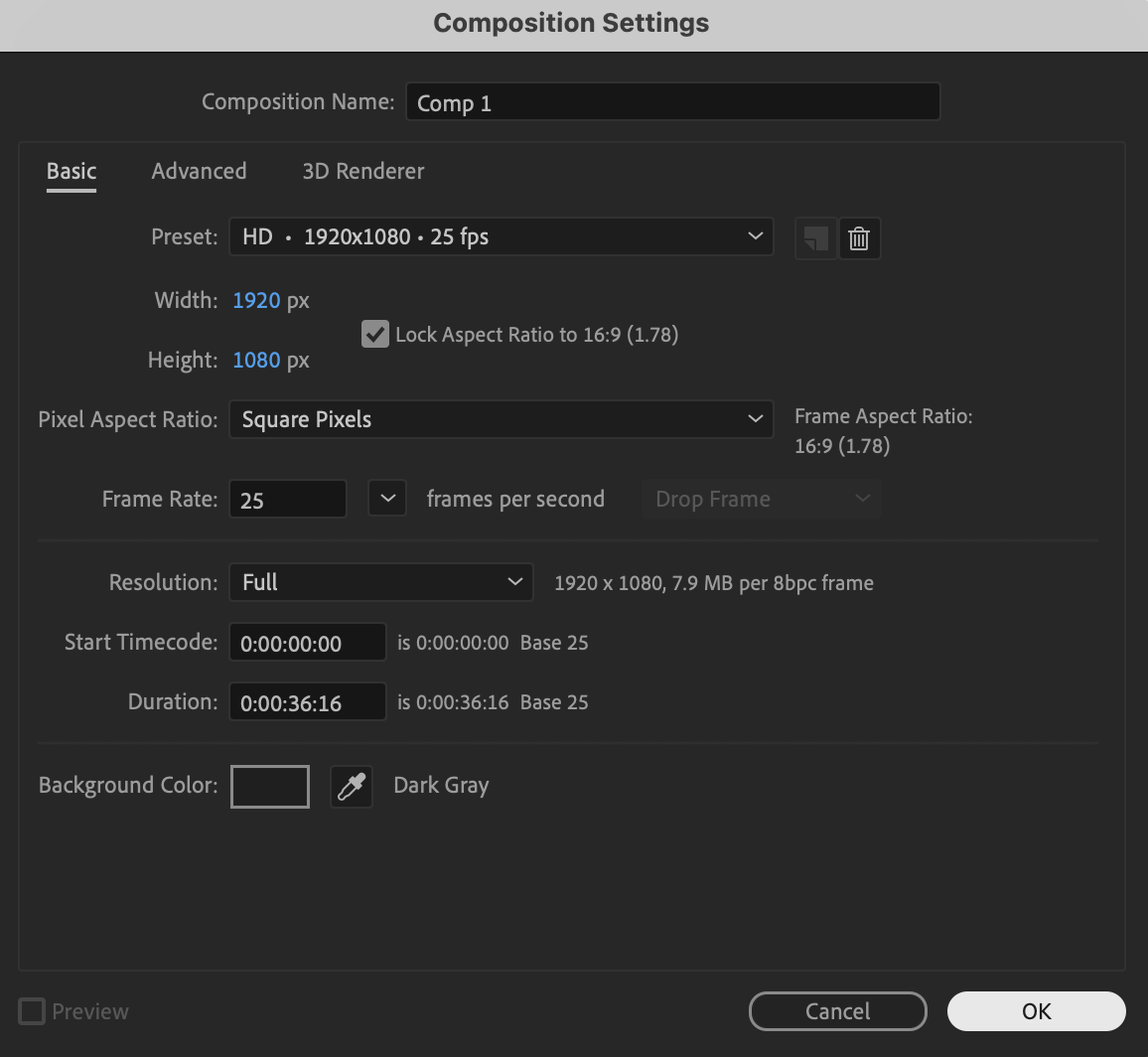
Create a new composition with your desired resolution and frame rate.
 Step 2: Draw a Circle
Select the Ellipse Tool (Q). Hold Ctrl / Cmd + Shift while drawing to create a perfect circle.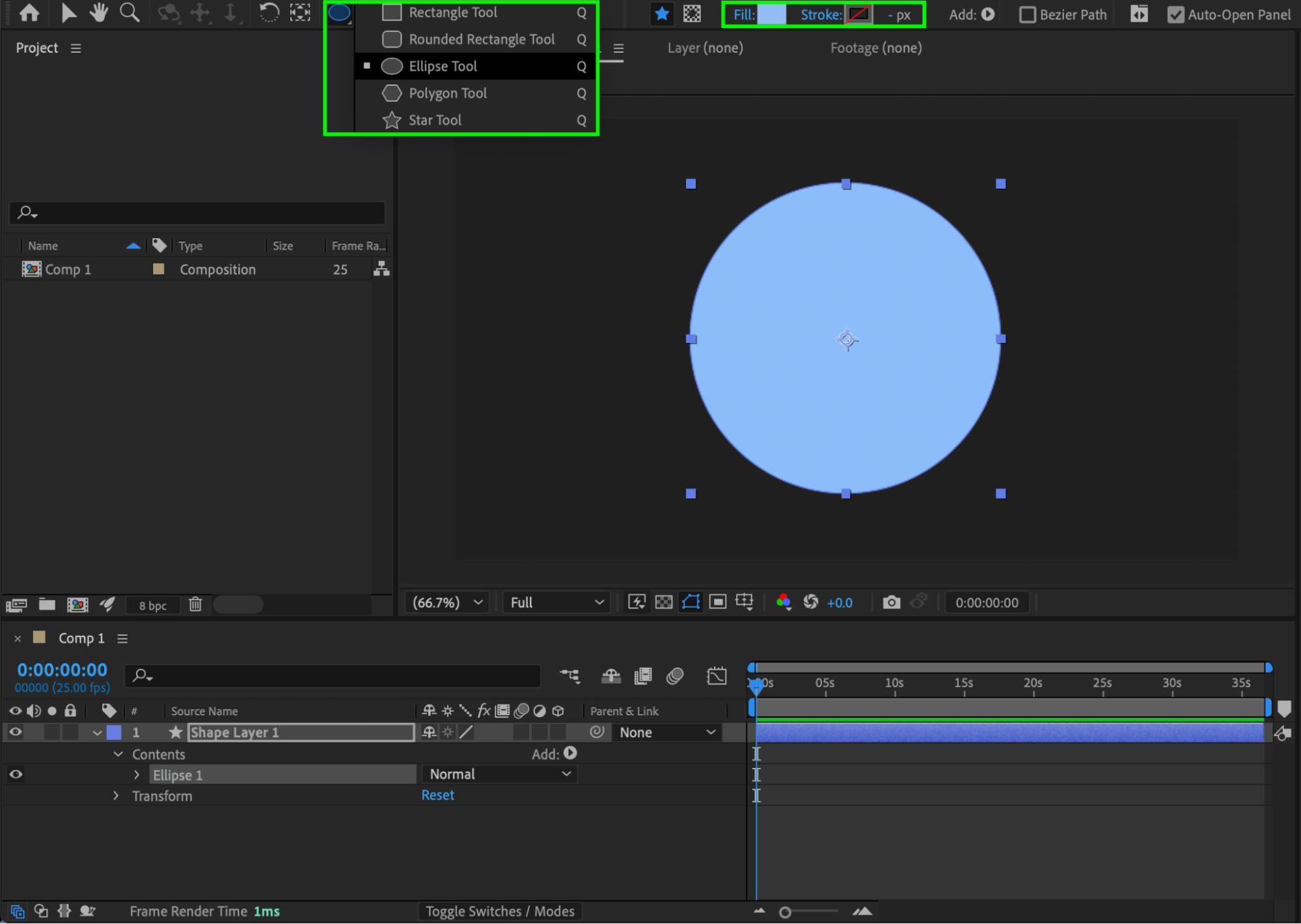
Step 3: Apply Gradient Overlay
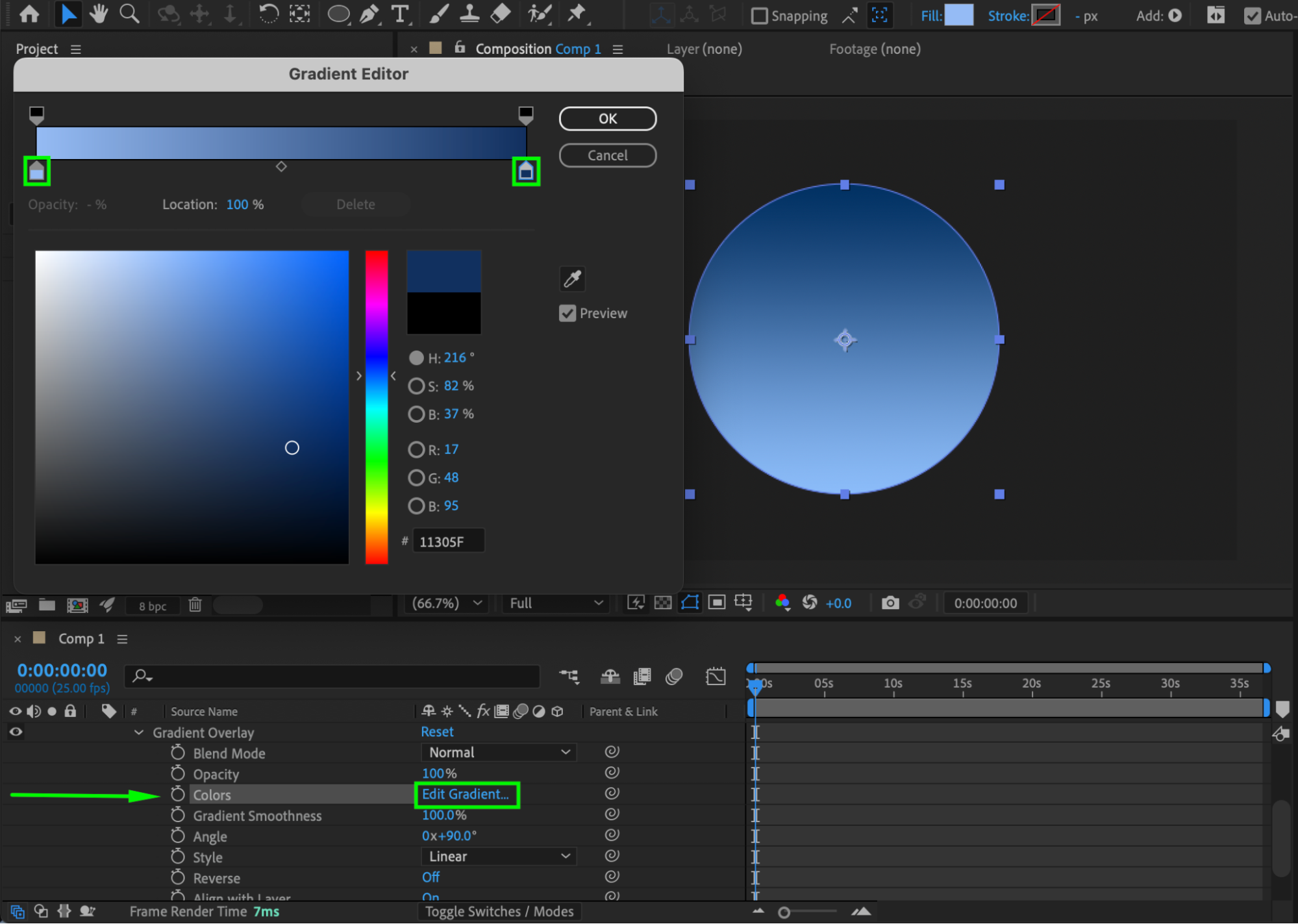
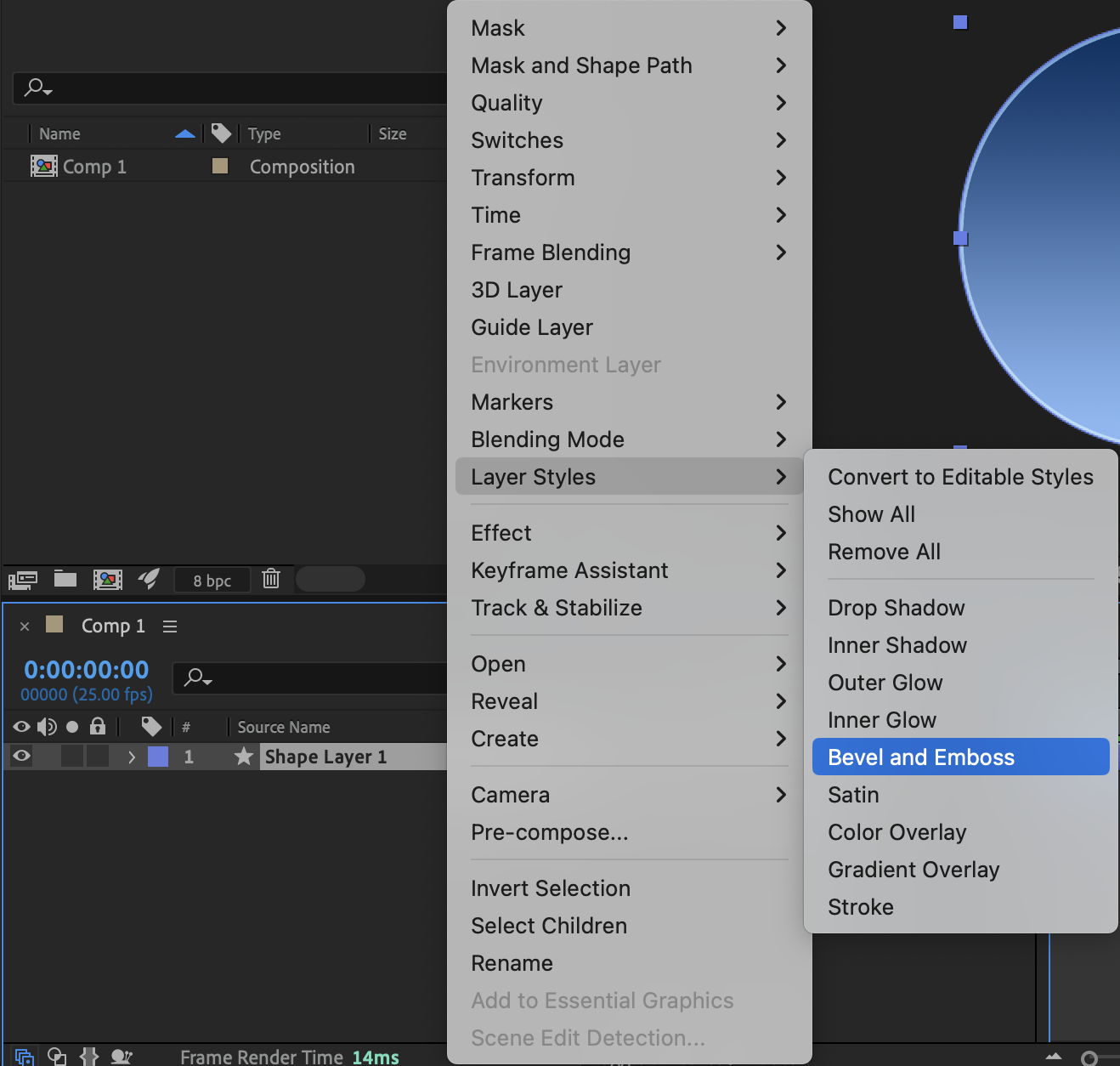
Right-click the circle layer → Layer Styles → Gradient Overlay. Expand the layer properties, and next to Colors, click Edit Gradient… Choose your gradient colors (for example, light blue to dark blue) to give the circle volume.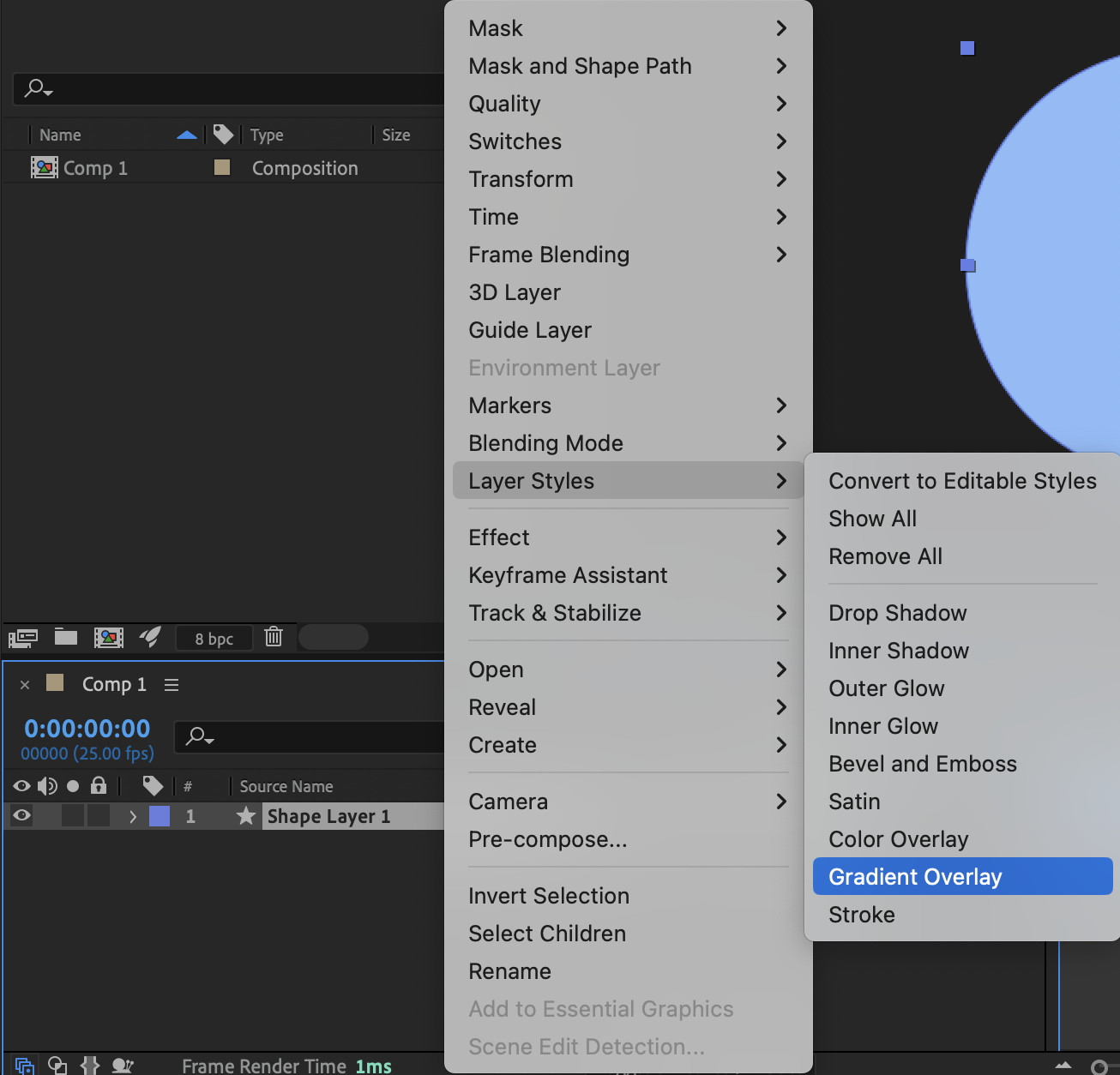
Get 10% off when you subscribe to our newsletter

Step 4: Add Inner Glow
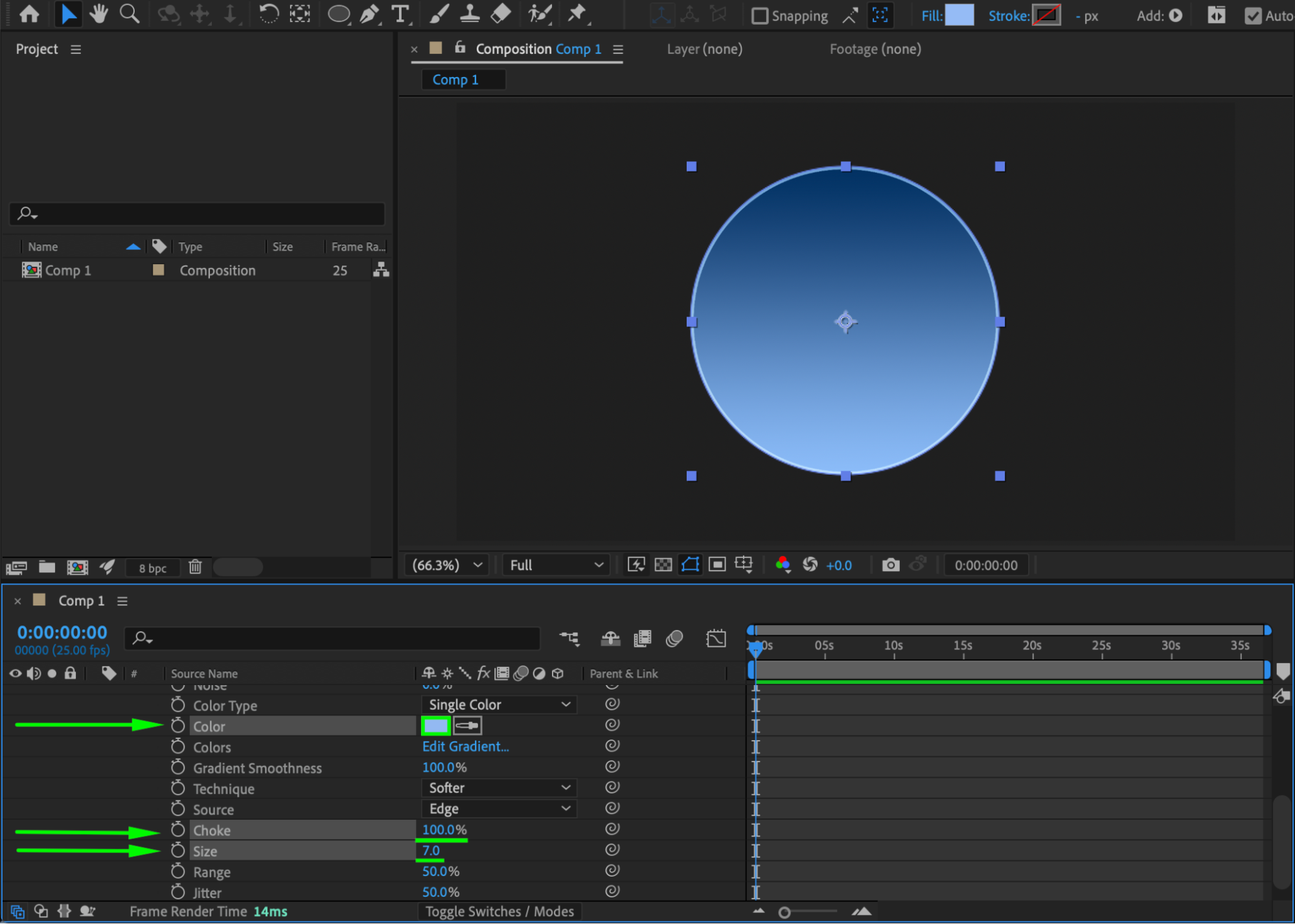
Right-click the layer → Layer Styles → Inner Glow. Expand the properties and set:
Color: Light Blue
Choke: 100
Size: 7
This adds subtle shading inside the circle, enhancing depth.
 Step 5: Add Bevel & Emboss
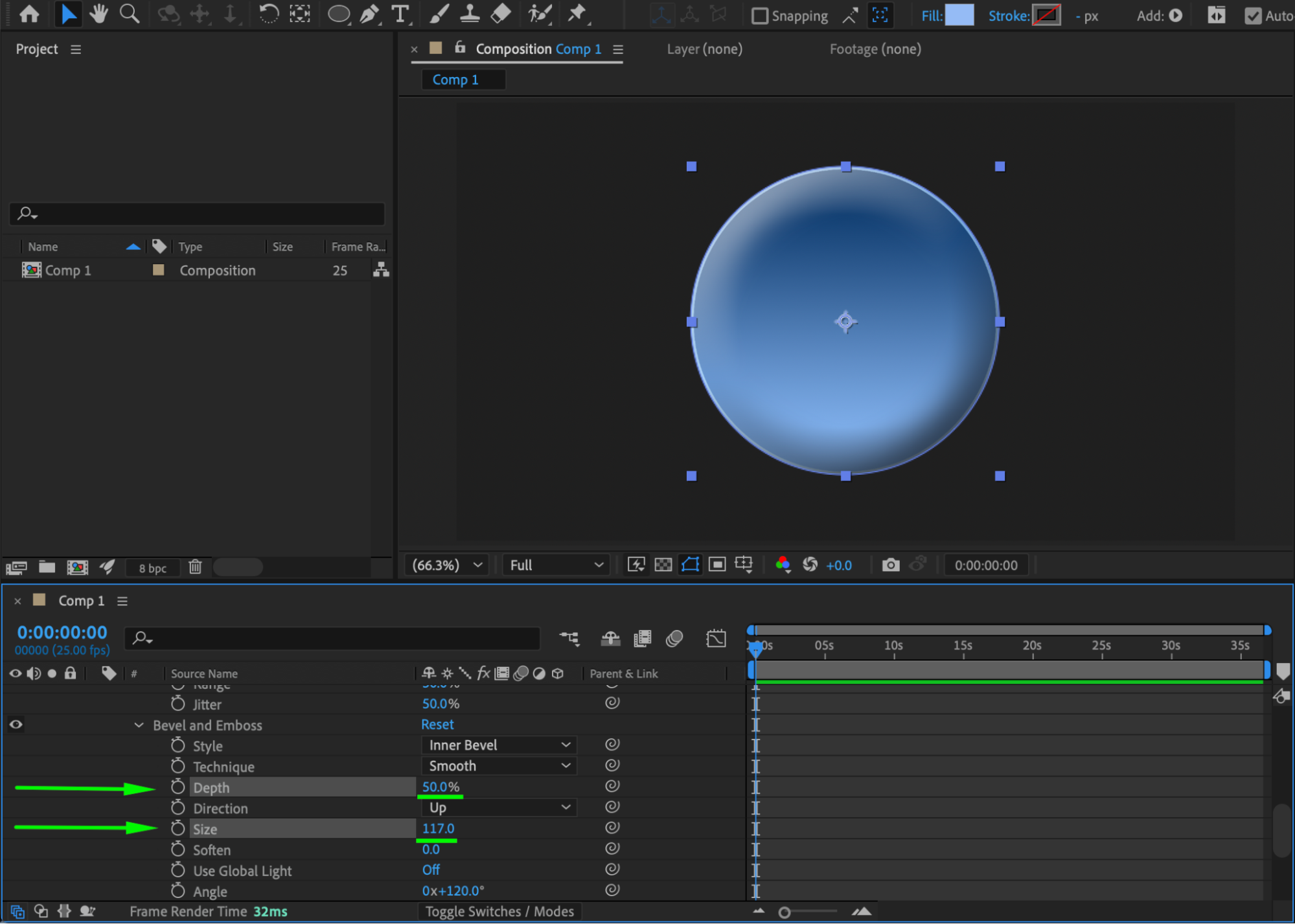
Right-click the layer → Layer Styles → Bevel & Emboss. Expand the properties and set:
Depth: 50
Size: 117
This gives the circle a three-dimensional beveled look.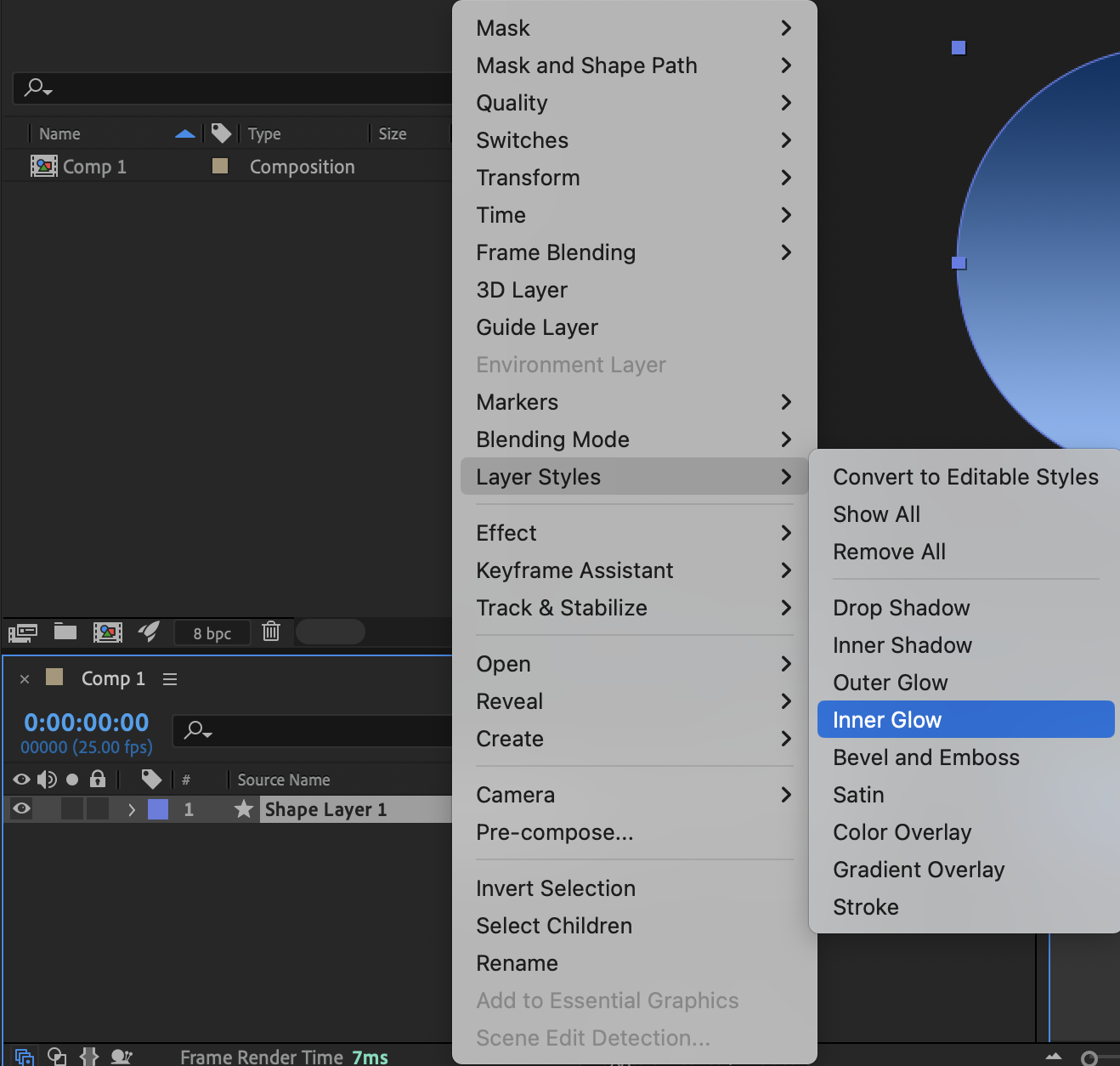
Step 6: Create an Adjustment Layer
Go to Layer → New → Adjustment Layer and place it above the circle.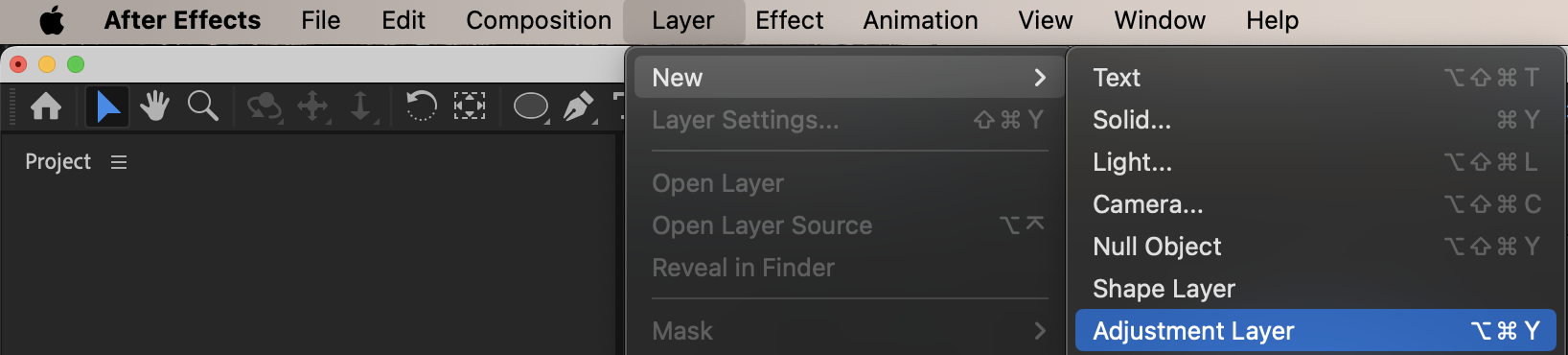 Step 7: Add Glow
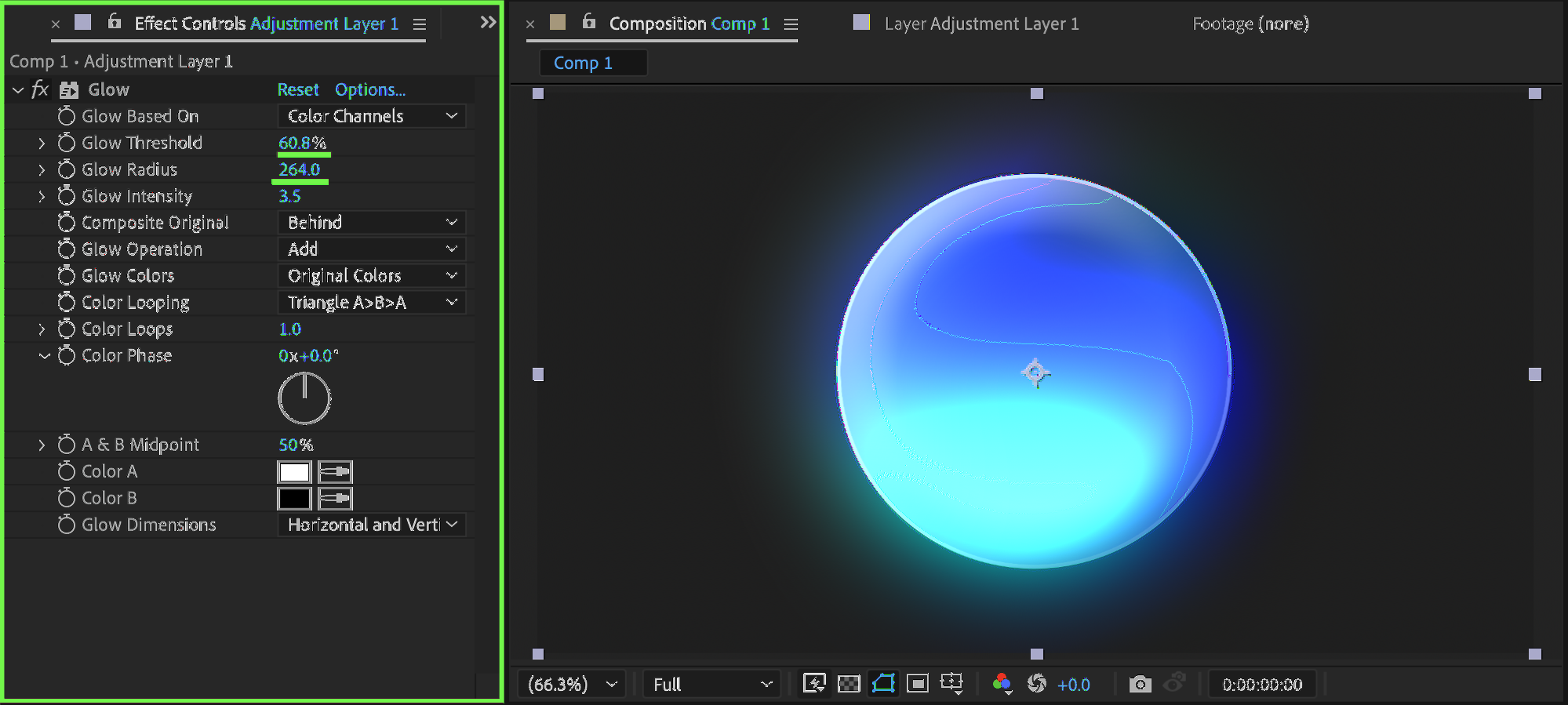
Apply Glow from the Effects & Presets panel to the adjustment layer. Set:
Glow Threshold: 60
Glow Radius: 264
This enhances the circle’s highlight and adds a soft glow effect.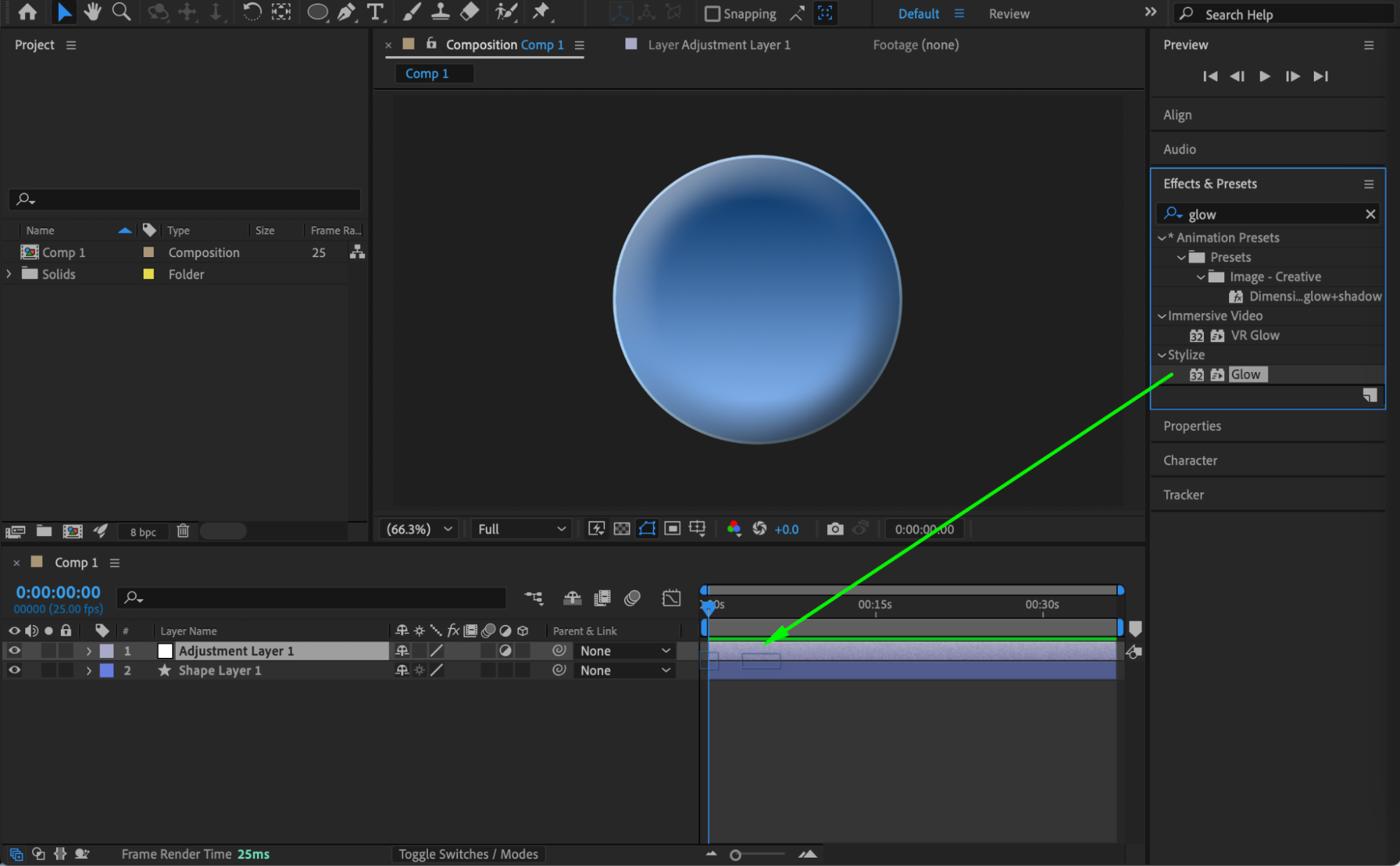
 Step 8: Preview the Result
Preview the composition and adjust gradient, bevel, inner glow, or glow settings as needed to achieve the desired depth.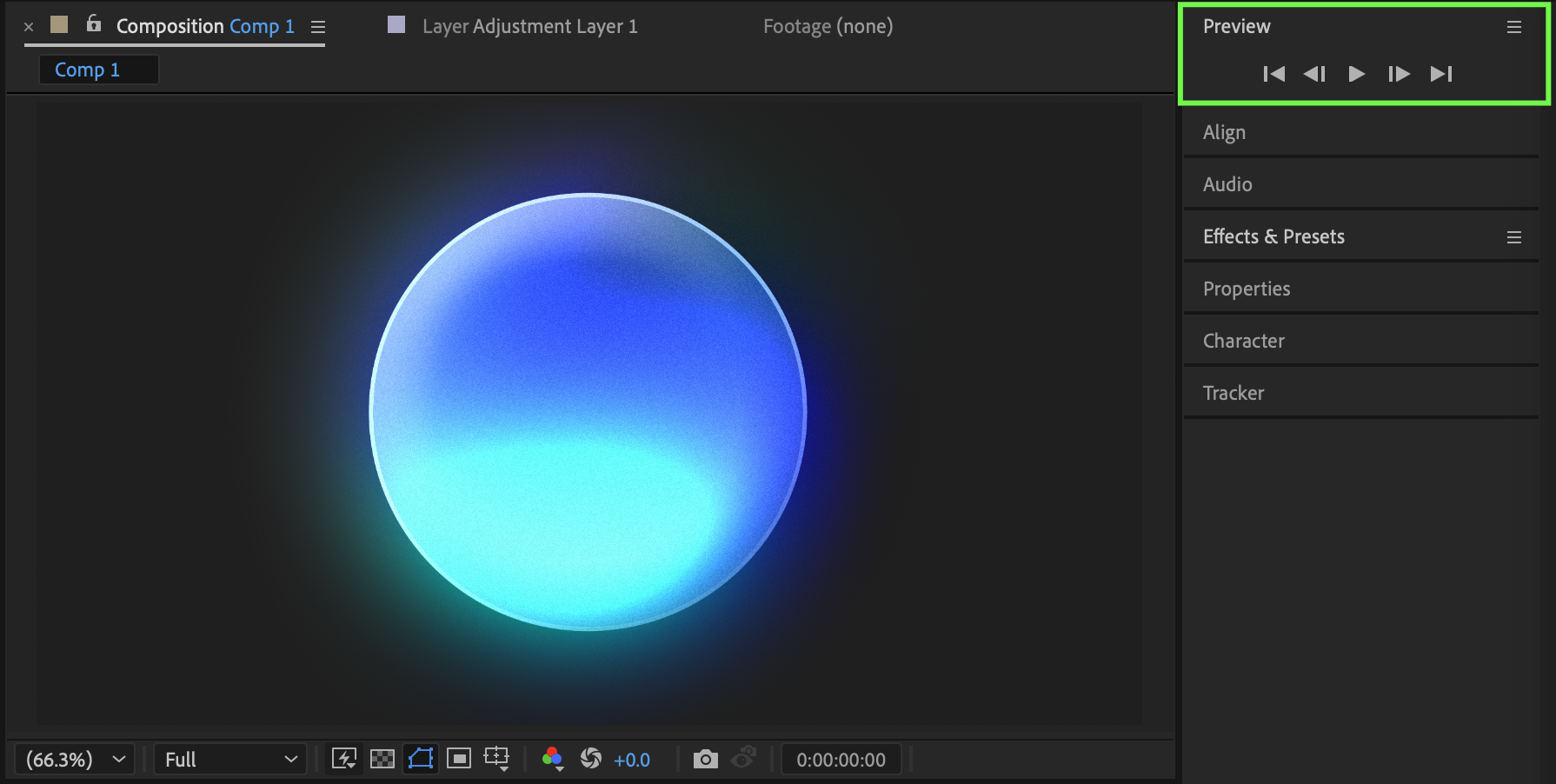 Conclusion
By combining gradient overlays, inner glow, bevel & emboss, and adjustment layer glow, you can create a circle with realistic three-dimensional depth in After Effects. This technique works well for icons, buttons, logos, and UI elements.
Our Bestsellers
Our Bestsellers


