Introduction
This tutorial explains how to add a picture as a background in After Effects while keeping the subject from your video in the foreground. You’ll use the Roto Brush tool to remove the original background and place an image behind the subject for a clean composite.
Step 1: Import Video and Background Image
Go to File > Import > File and import:
The video you want to edit
The background image
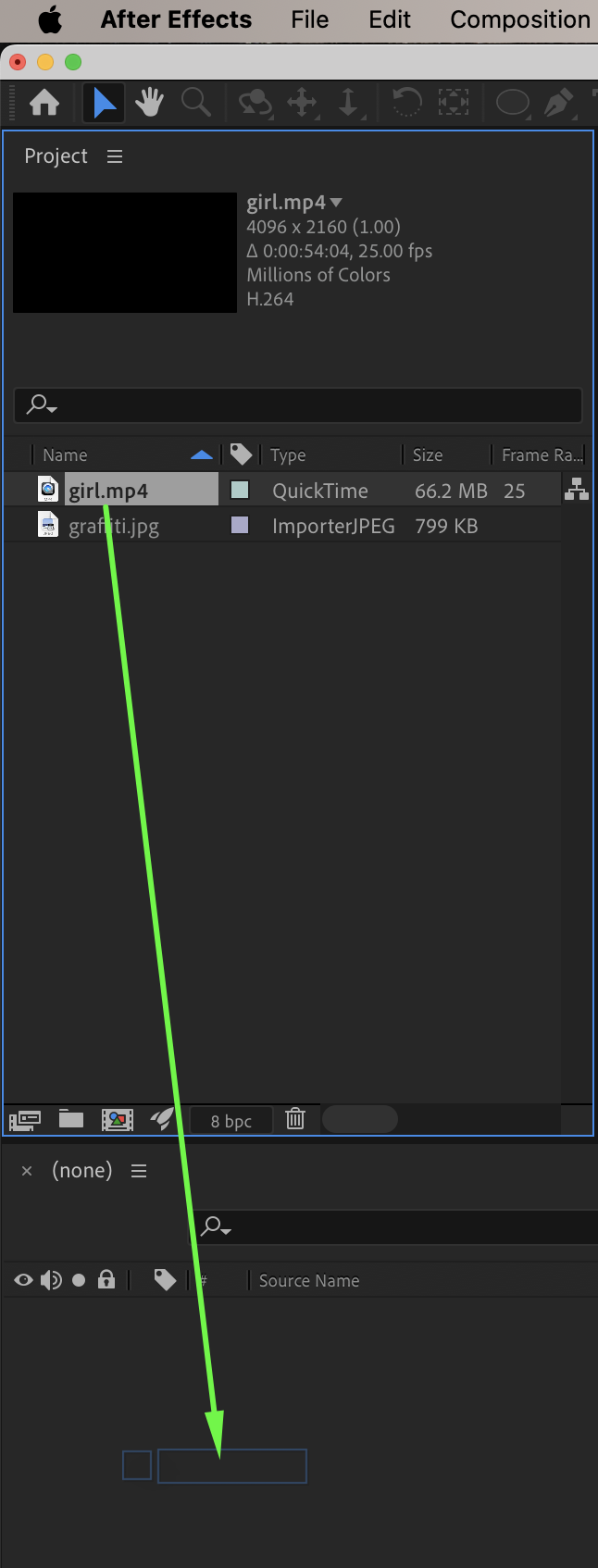
Drag both files onto the timeline.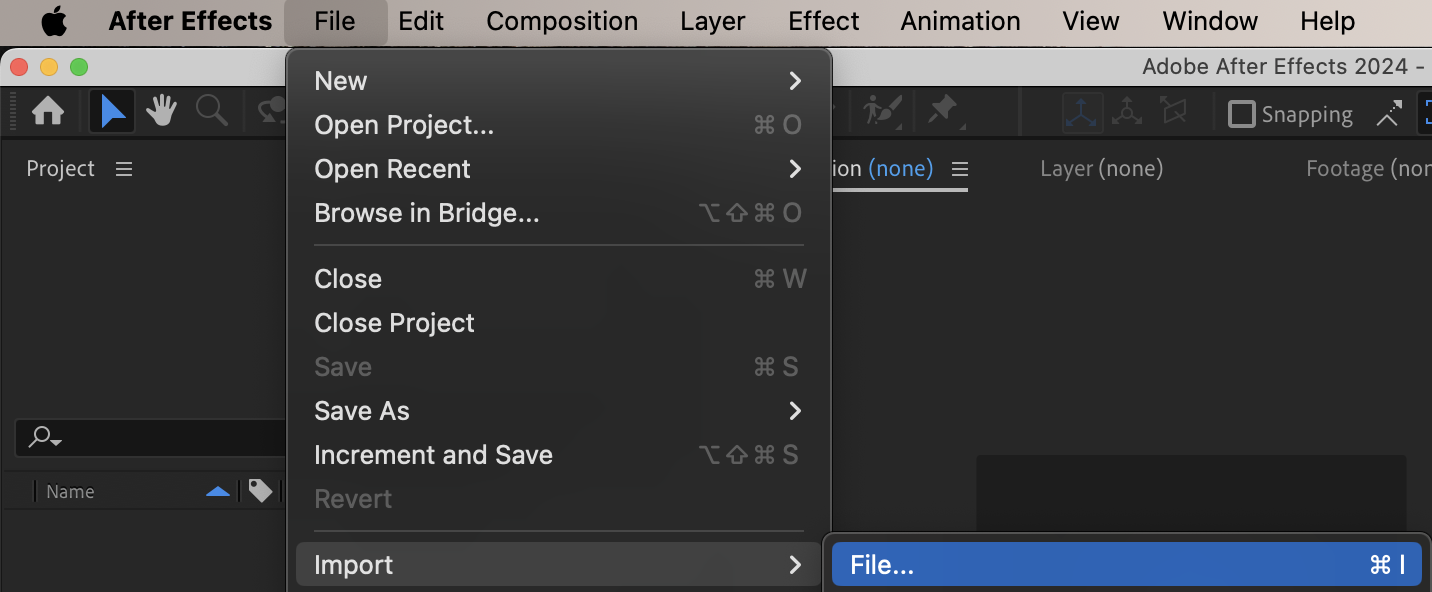
 Step 2: Remove the Original Background with Roto Brush
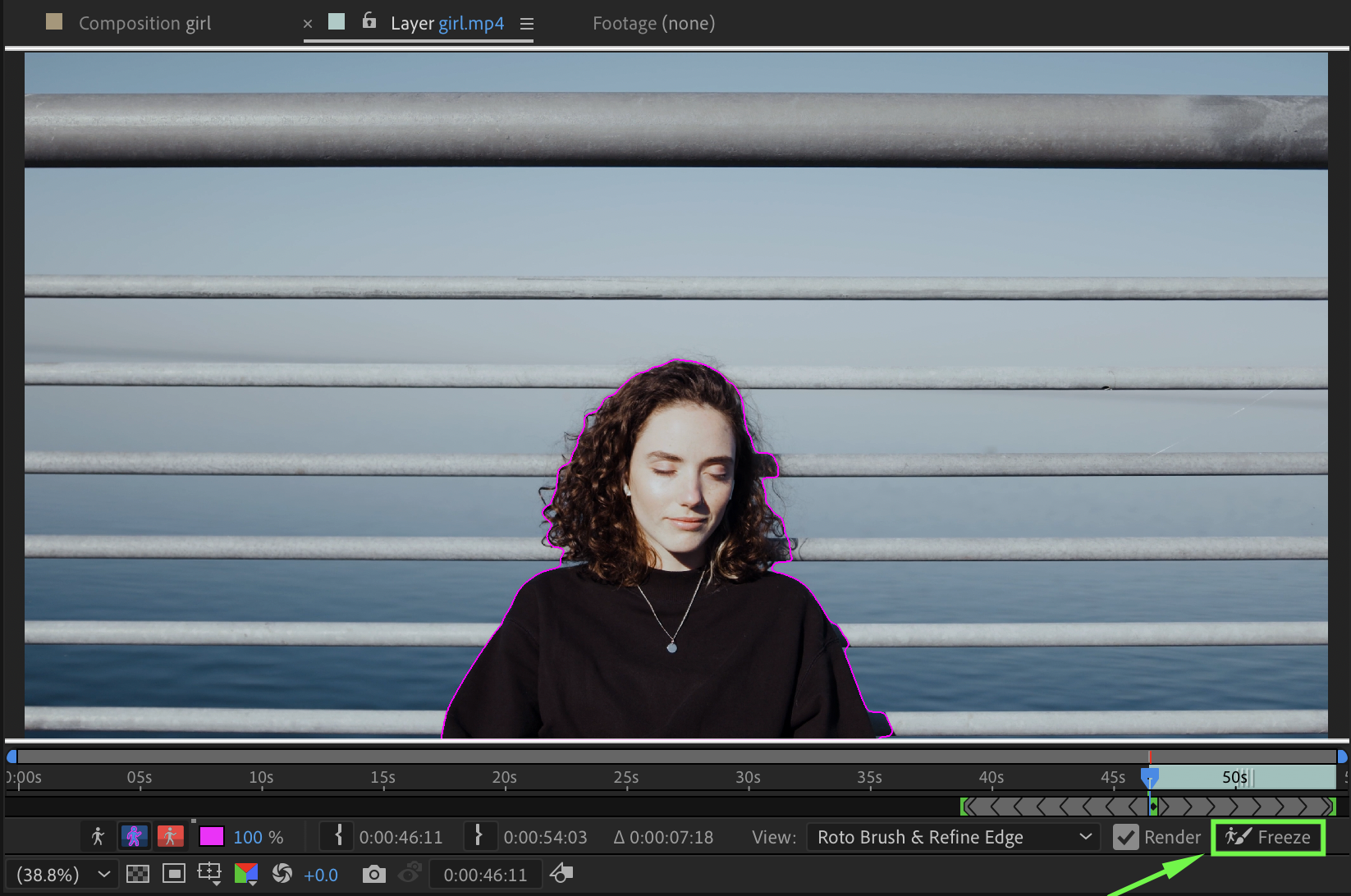
Double-click the video layer to open it in the Layer panel. Select the Roto Brush Tool (Alt / Option + W). Paint over everything you want to keep in the video (the subject). When the selection is correct, click Freeze.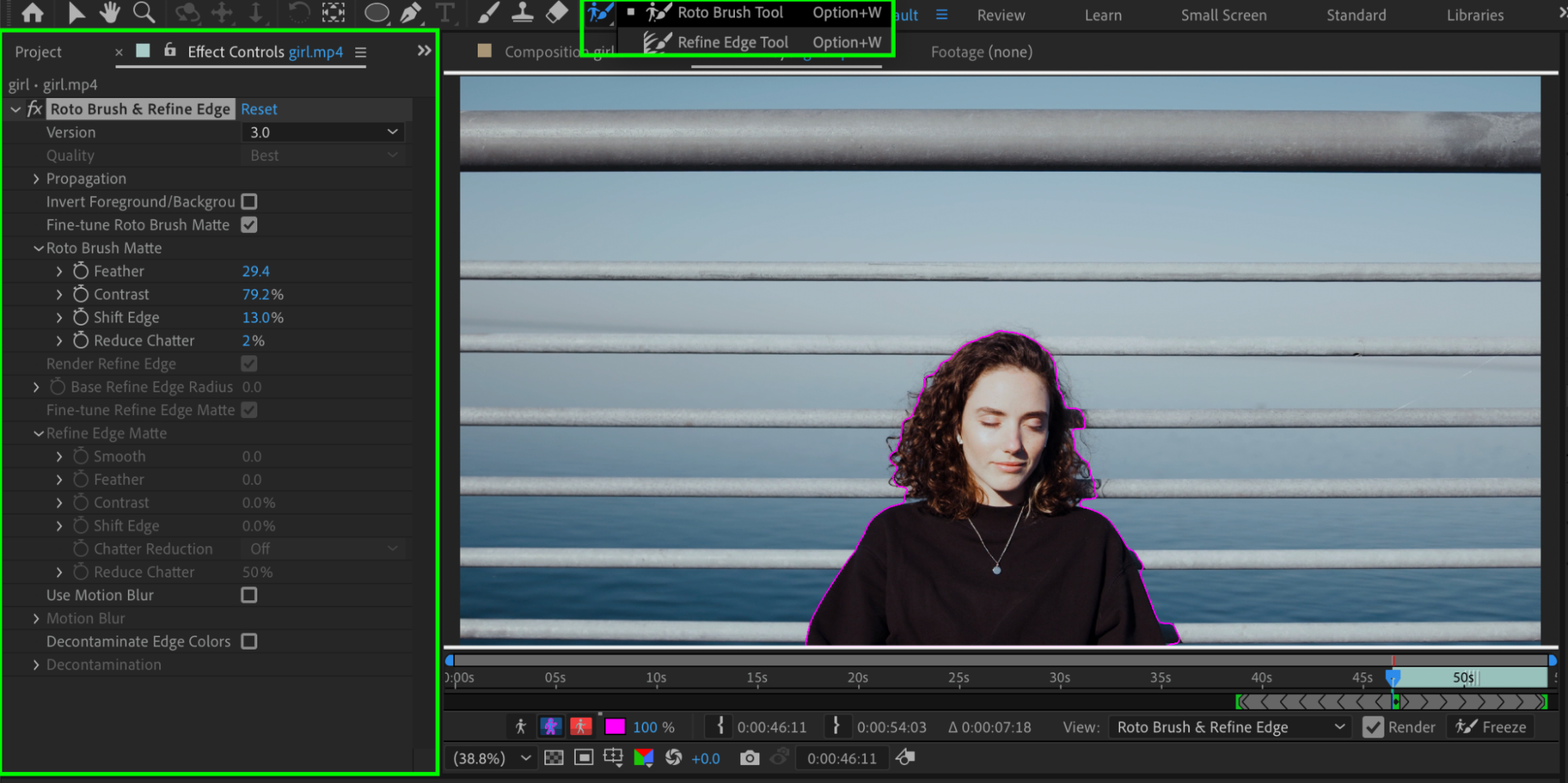
Get 10% off when you subscribe to our newsletter

Step 3: Add and Scale the Background Image
Drag the background image onto the timeline. Place it below the video layer and adjust the Scale so it fills the composition.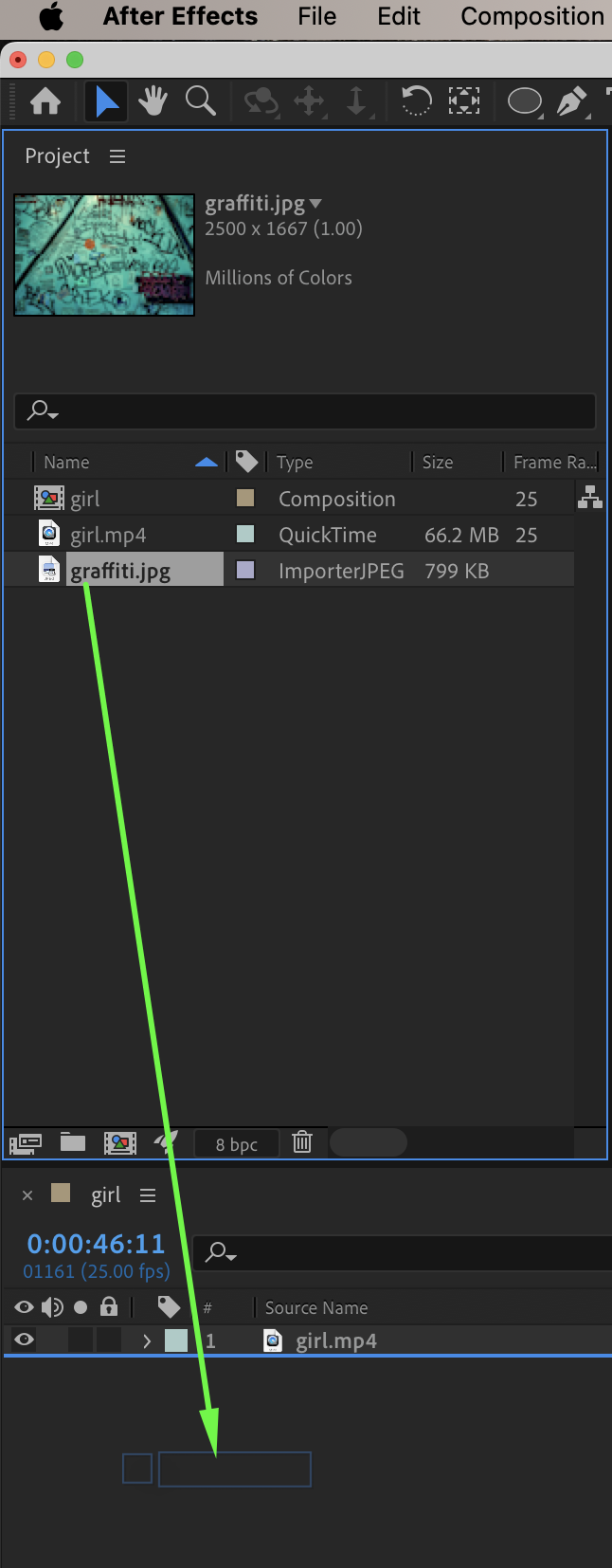
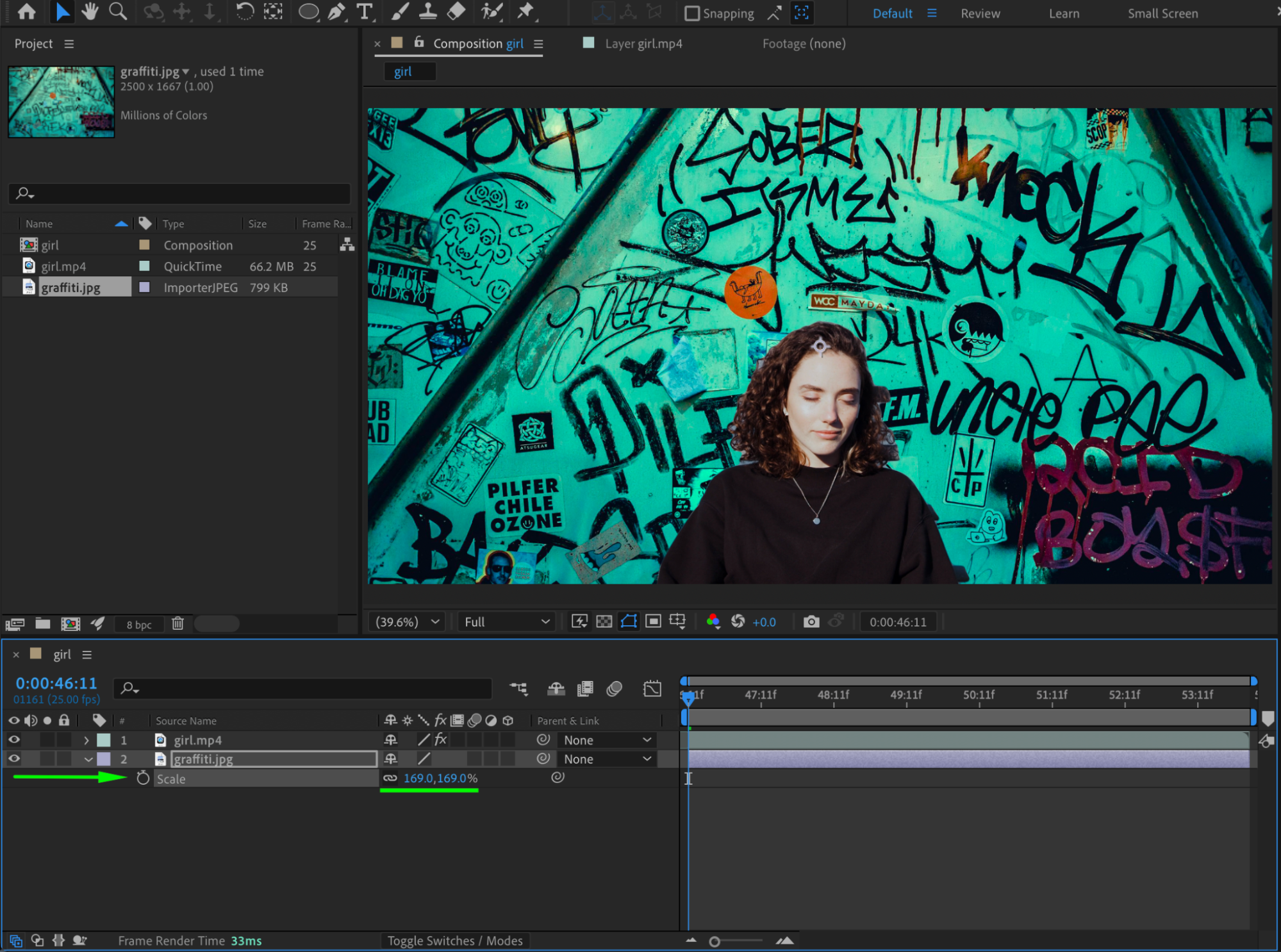 Step 4: Enable 3D and Adjust Background Rotation
Enable the 3D Layer switch for the background image. Adjust the Rotation values to display the background in the desired plane or perspective.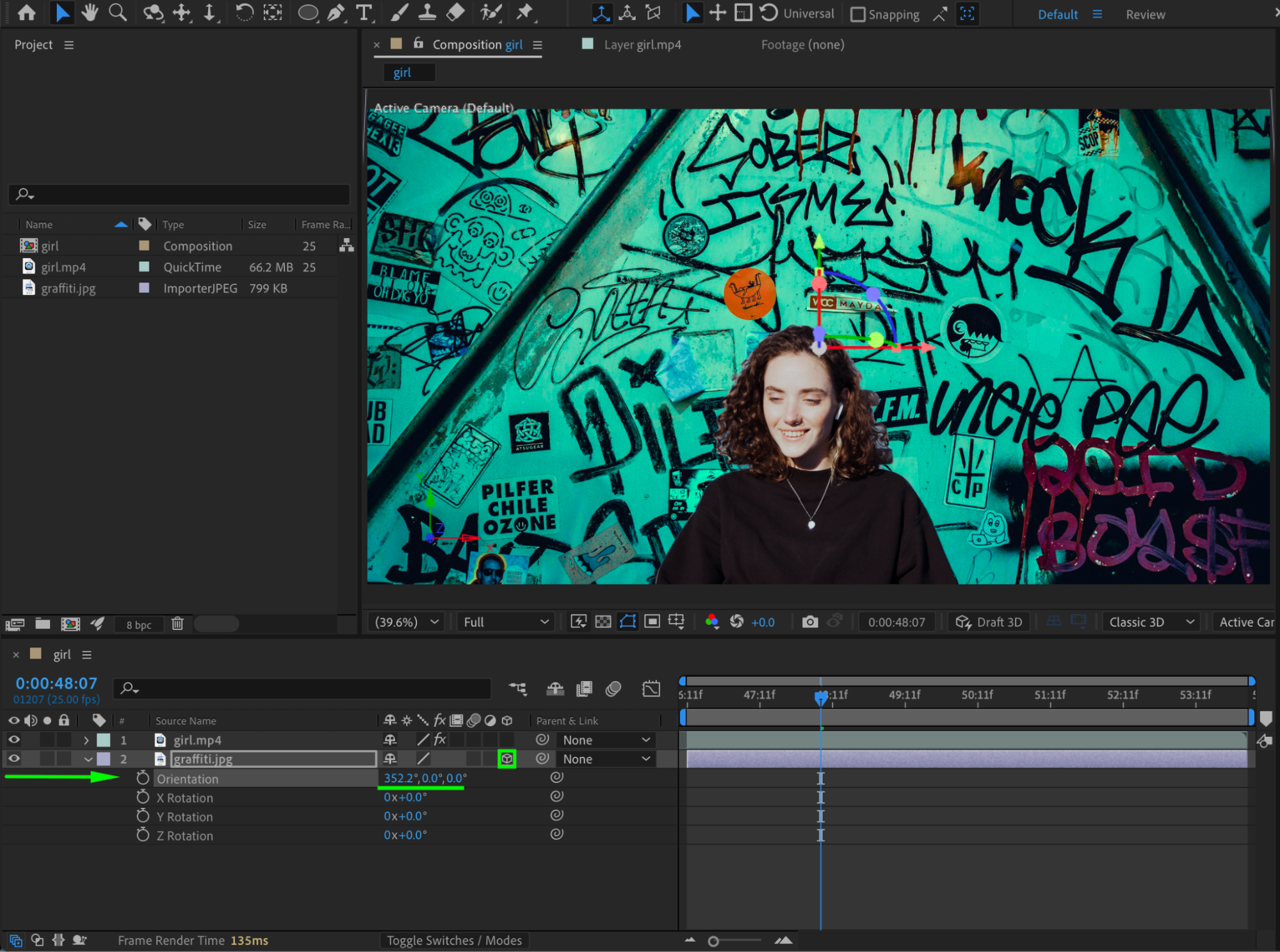
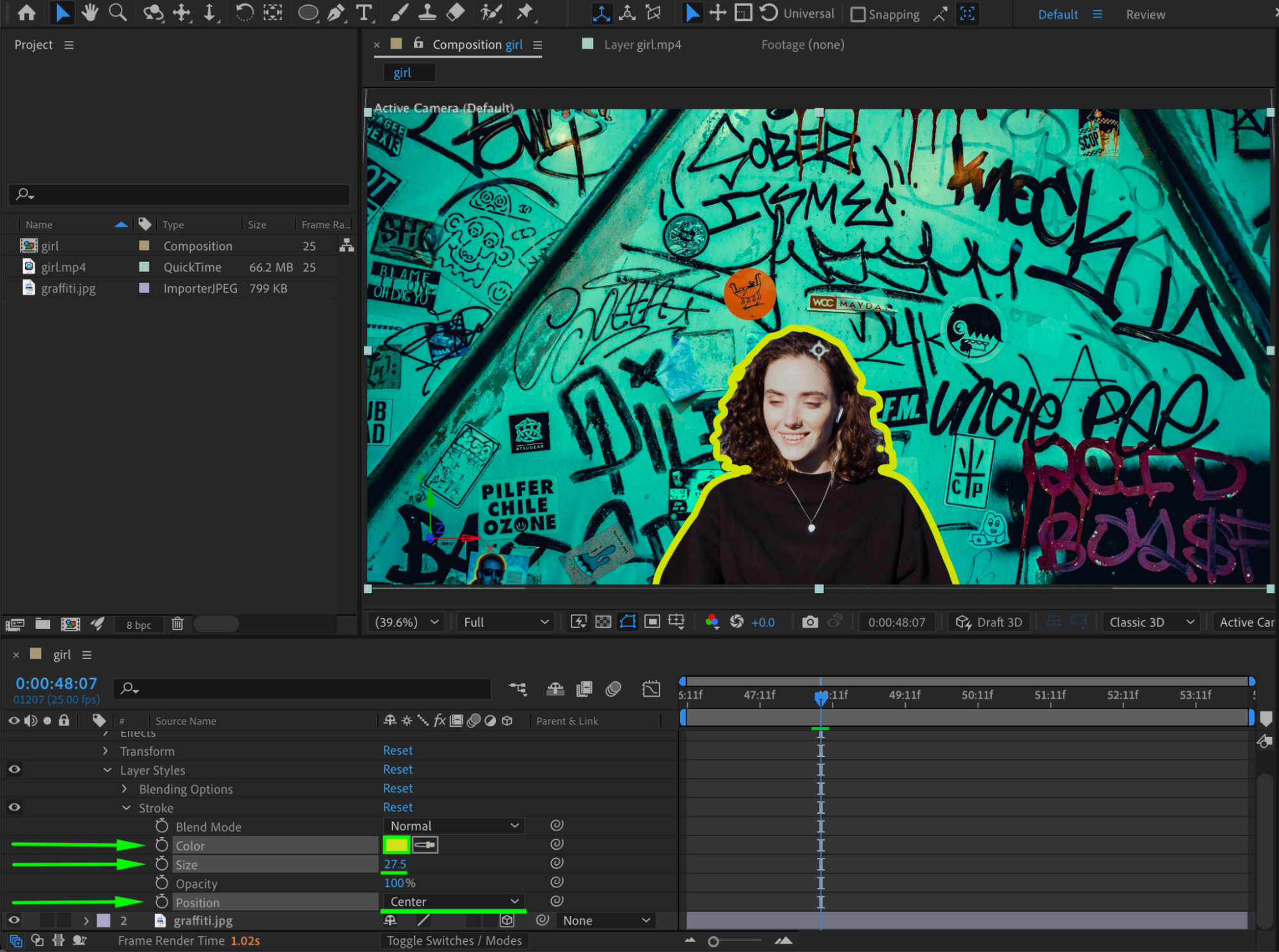
Step 5: (Optional) Add a Stroke to the Subject
Optionally, right-click the cut-out video layer and choose Layer Styles > Stroke. Adjust the stroke settings to create a subtle outline around the subject.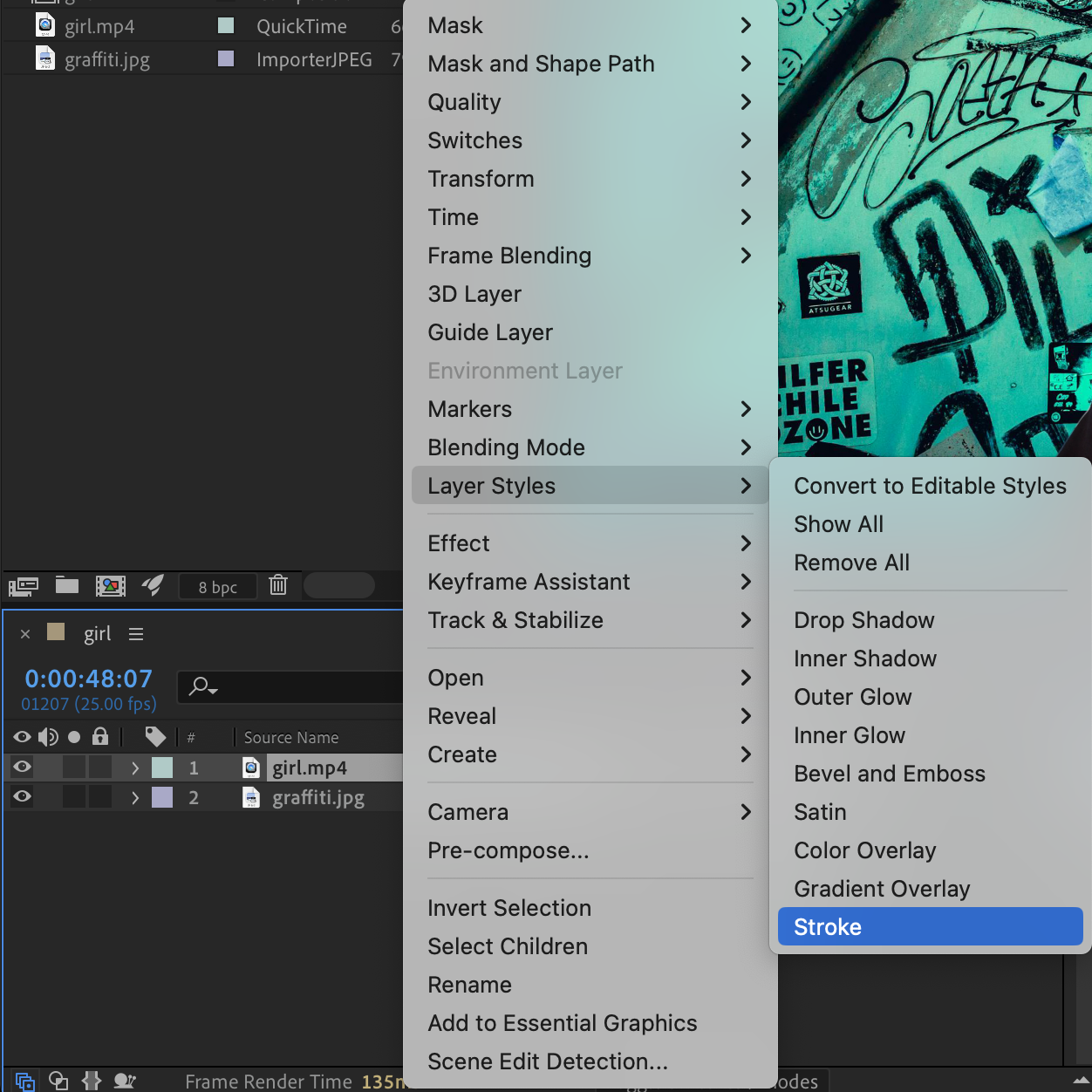
 Step 6: Preview and Finalize
Preview the composition and fine-tune the background scale, rotation, or roto edges if needed.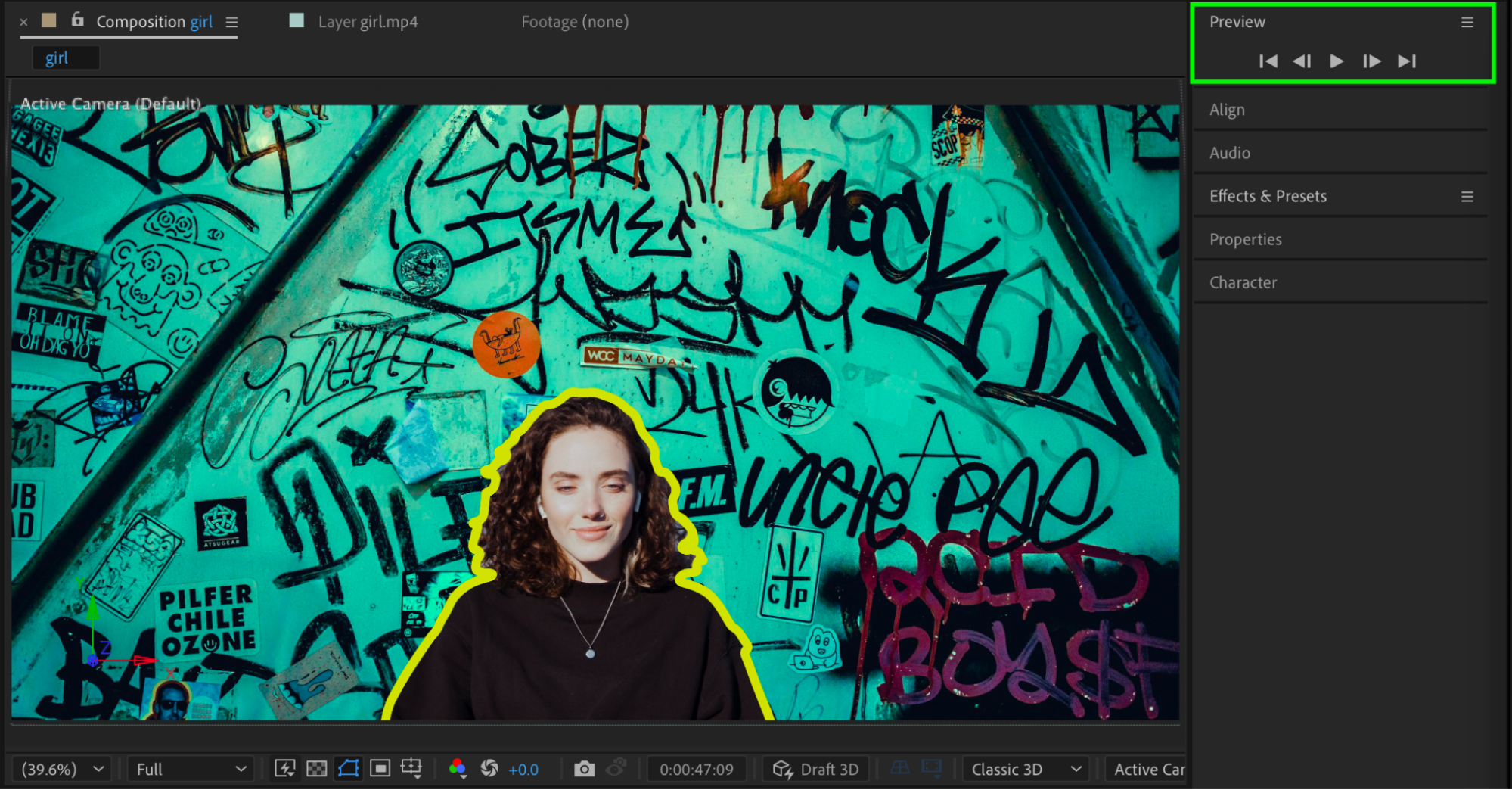 Conclusion
By using Roto Brush and placing an image behind your subject, you can easily add or replace a background in After Effects. This technique is ideal for creative composites, social media content, and motion graphics projects.
Our Bestsellers
Our Bestsellers


